
Double-click the time
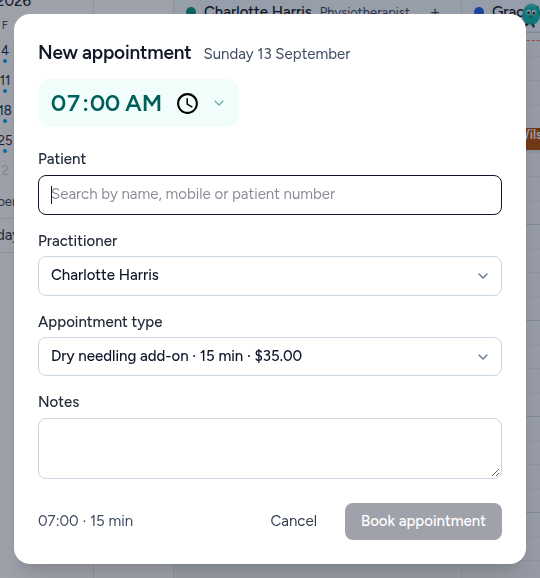
In the diary, in the column of the practitioner who will see them. The panel opens with that time and that practitioner already filled in, which is most of the booking done before you have typed anything.
Find them
The Patient box searches name, mobile and patient number together, so any of the three works — and the one a person on the phone can always give you is their mobile.
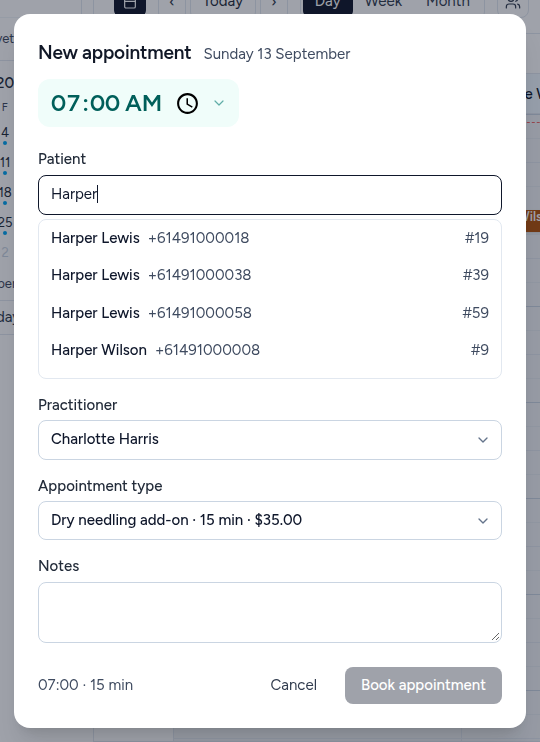
Look at the number, not just the name. Every match shows a mobile and a patient number down the right. Three of the four people above are called Harper Lewis, and they are three different patients with three different files. The number is the only thing on that list guaranteed to be unique.
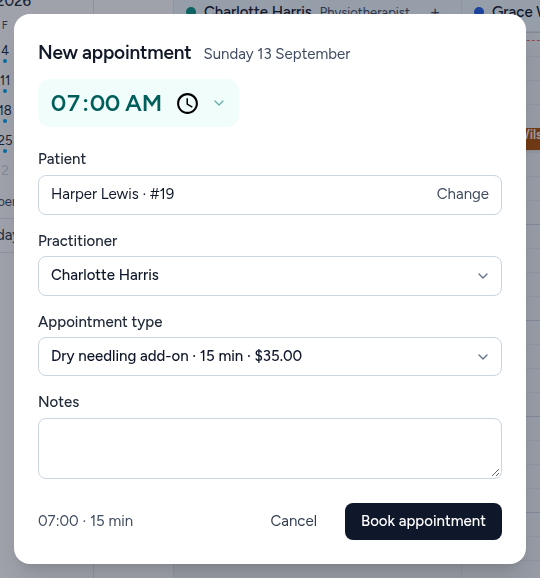
Check the service
The appointment type decides three things at once: how long the booking is, what it costs, and what the practitioner sees when they open it.
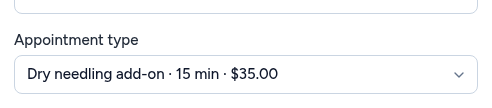
Changing it changes the length of the booking in the diary, so a 15-minute add-on and a 45-minute initial assessment do not look the same on the grid. Set it before you book rather than resizing afterwards.
Book it
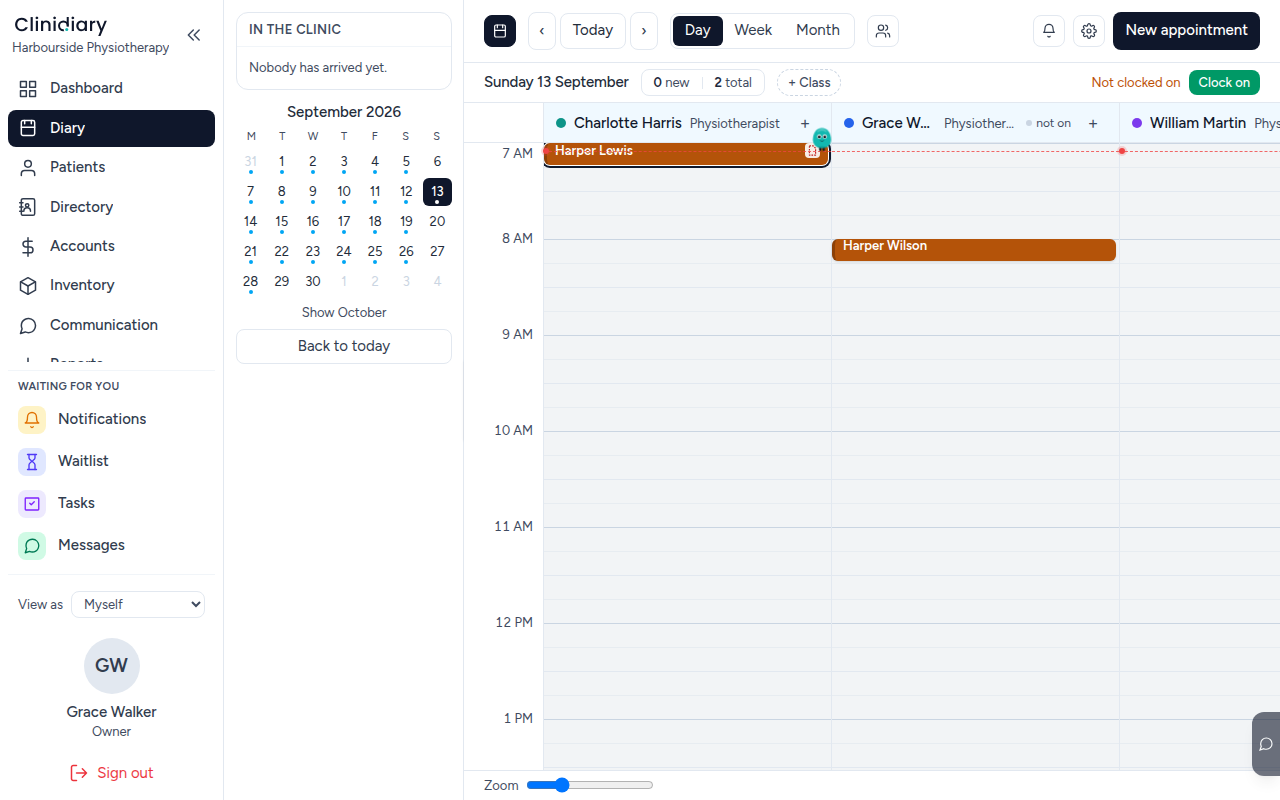
The counter at the top of the day goes up, and the patient gets whatever your practice has set up for a new booking — a confirmation, a reminder the day before, both or neither.
If the time is not free
The diary will not double-book a practitioner: pick an occupied slot and the panel says so rather than quietly stacking two people on one time.
If nothing suitable is free, book what you can and put them on the waiting list with the service and the practitioners who would do. When something opens up, the waitlist is the first place the front desk looks.
Changing it afterwards
Drag the booking to a new time, or open it and change the time there. Both are the same edit and both tell the patient if your practice sends changes.