
Every practitioner side by side
The diary shows one column per practitioner, with the day down the side. Switch between day, week and month. Closed time is shaded, and a red dashed line marks the time right now.
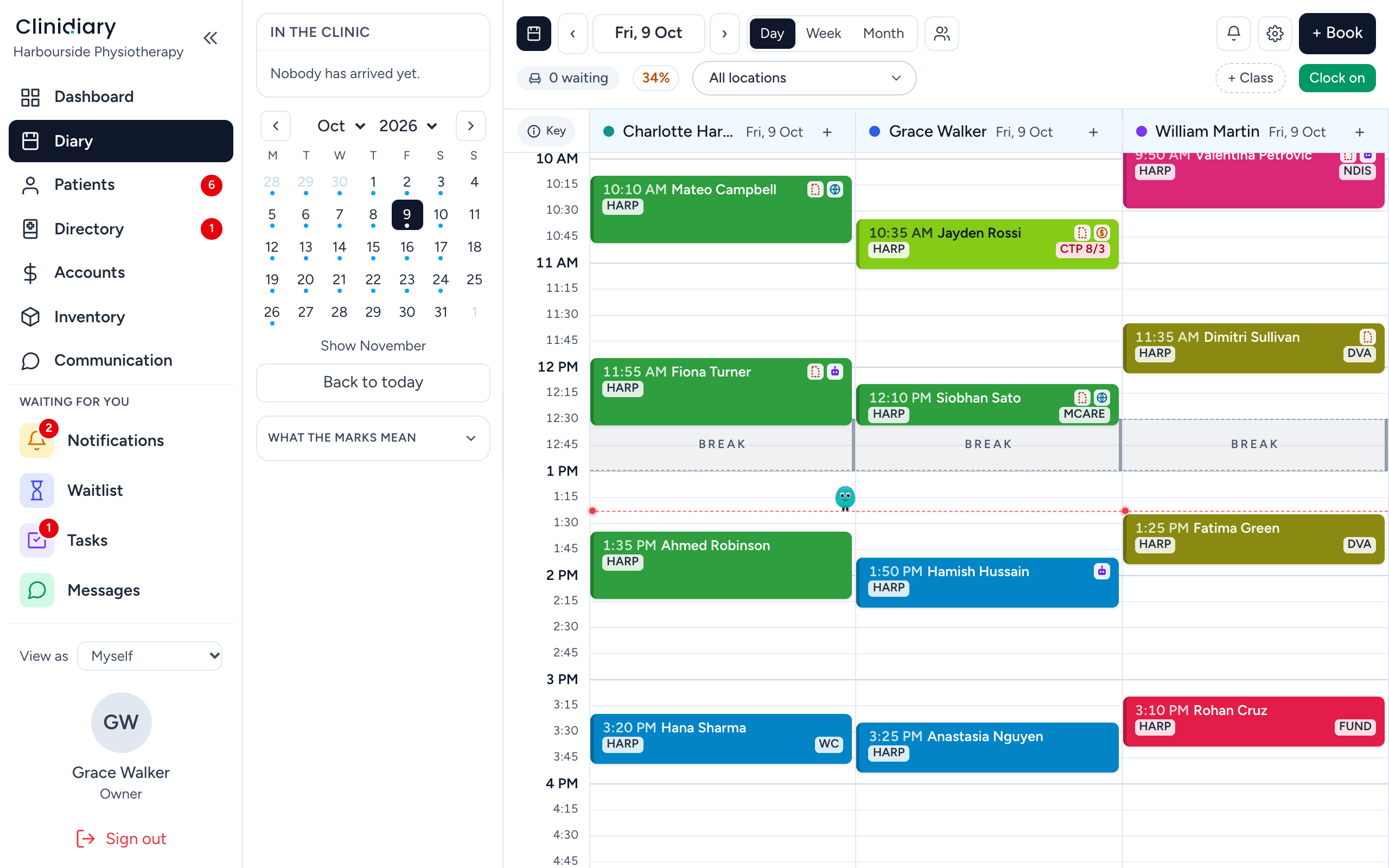
Each booking shows the patient, the service and how the visit is going. Hover to see the whole card, click to open it.
Booking, moving and stretching
| To do this | Do that |
|---|---|
| Book | Click an empty slot, choose the patient and the service |
| Move | Drag the booking to a new time or another practitioner |
| Make it longer | Drag the bottom edge down |
| Open it | Click the booking |
The service brings its own length and price, so a 45-minute initial assessment books as 45 minutes without anyone working it out.
The next free time
When a patient says "whatever's soonest", use the free-slot search rather than reading the grid. It only offers times where the whole appointment fits inside the practitioner's hours, which is easy to miss by eye on a full day.
Repeat bookings for a course of treatment
Book a whole course at once: daily, on weekdays, weekly up to every four weeks, or monthly. Each repeat is checked before it is saved, and a repeat never lands in a break or a practitioner's leave.
What the diary refuses, and why
- No double booking. Two patients cannot hold one practitioner at once. The booking springs back and shows who is already there.
- No bookings when closed. If the practitioner's diary is not open, the booking is refused. Practitioners, owners and managers can override it on purpose; reception cannot by default.
- No stretching over the next patient. Lengthening a booking into someone else's slot is refused, rather than quietly moving three other people's appointments.
Marking the visit
Appointments move through Booked, Confirmed, Arrived, In progress and Completed, or Did not attend and Cancelled. Reception ticks Arrived as the patient walks in; the practitioner sees who is waiting and the dashboard counts who is in the clinic. Use Did not attend for a no-show and Cancelled for a cancellation, because clinic reports count them differently.
Alerts and diary notes
An alert on a patient's file, an allergy, a falls risk, money owing, shows in amber on the booking card. Coloured strips on a column are diary notes and bands: a staff meeting, a public holiday, travel time for a home visit. Nobody is booked into a band, and notes never appear in your numbers.
Online bookings, reminders and cancellations
Bookings from your online booking page land in the diary like any other. SMS and email reminders go out from the diary automatically, and patients confirm by replying. When someone cancels, the waiting list shows who wants that exact slot.
In your own calendar
Each practitioner can see their bookings in Google, Apple or Outlook Calendar on their own phone, kept up to date.
Who moved that booking?
Manage → Activity log → Diary changes shows every booking made, moved, cancelled or marked, by whom, with the old time struck through beside the new one.
Frequently asked questions
What should physiotherapy scheduling software do?
Show every practitioner side by side, book courses of treatment with repeat bookings, stop double bookings, fill cancellations from a waiting list, and send reminders. Clinidiary does all of these.
Can I book a course of physio appointments at once?
Yes. Book repeats daily, on weekdays, weekly up to every four weeks, or monthly, each checked for clashes, breaks and leave.
Can practitioners see their bookings on their phone?
Yes. Bookings appear in each practitioner's Google, Apple or Outlook Calendar, and the diary itself works on a phone or iPad.
Can I see who changed an appointment?
Yes. The activity log shows every booking made, moved, cancelled or marked, and by whom.